A tour of the screens

Pick a capability and click the steps; click an image to enlarge it. Screens are shown with sample data; the application interface is in Turkish.

MAKI GAMI · SWIM
SWIM — Open a study
SWIM · Explore

Screens are shown with sample data; the application interface is in Turkish.

SWIM · Map

Swimlane Process Map

Map the process in a few steps — from its scope to lanes and steps.
SWIM — Open a study
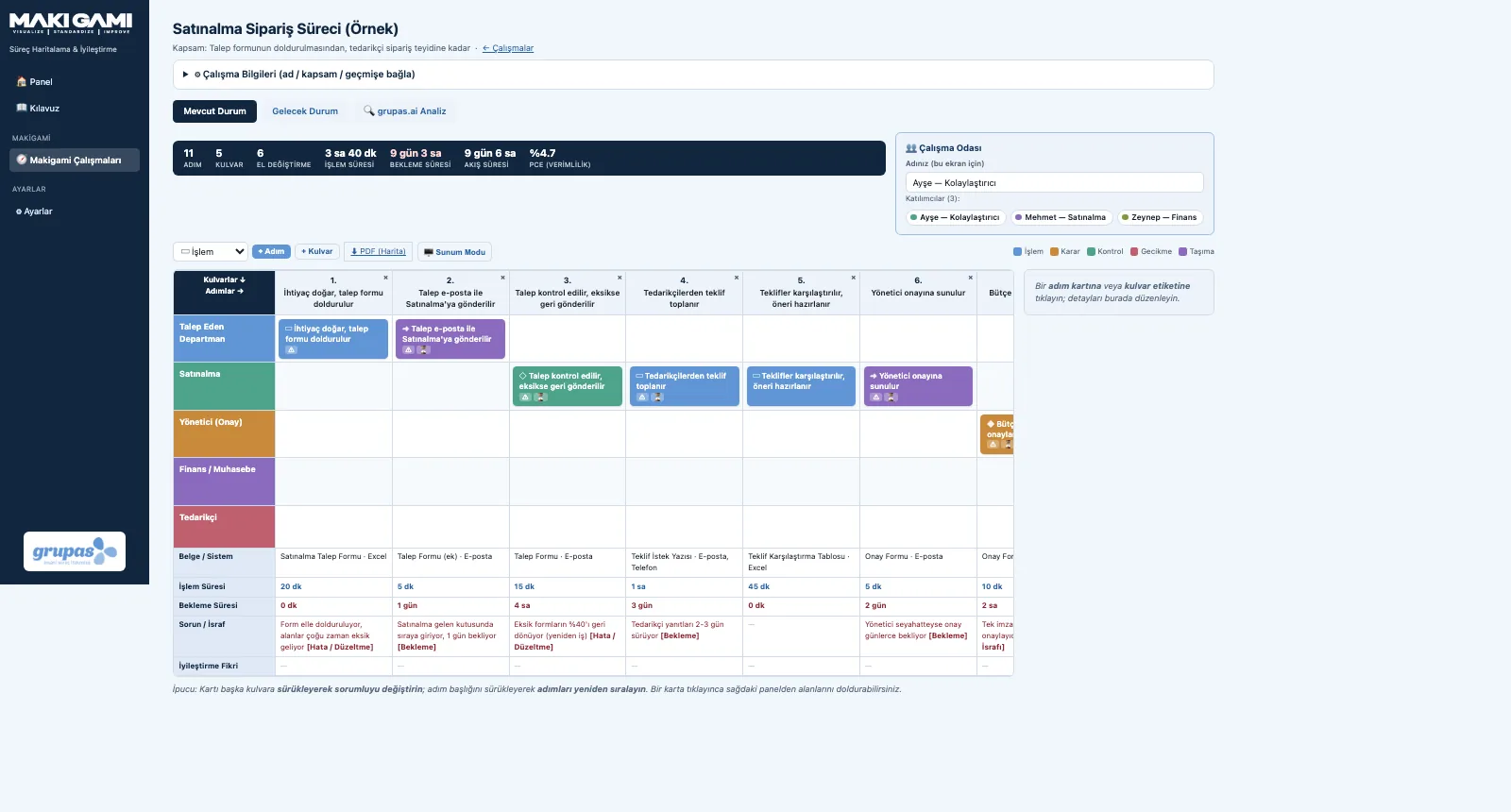
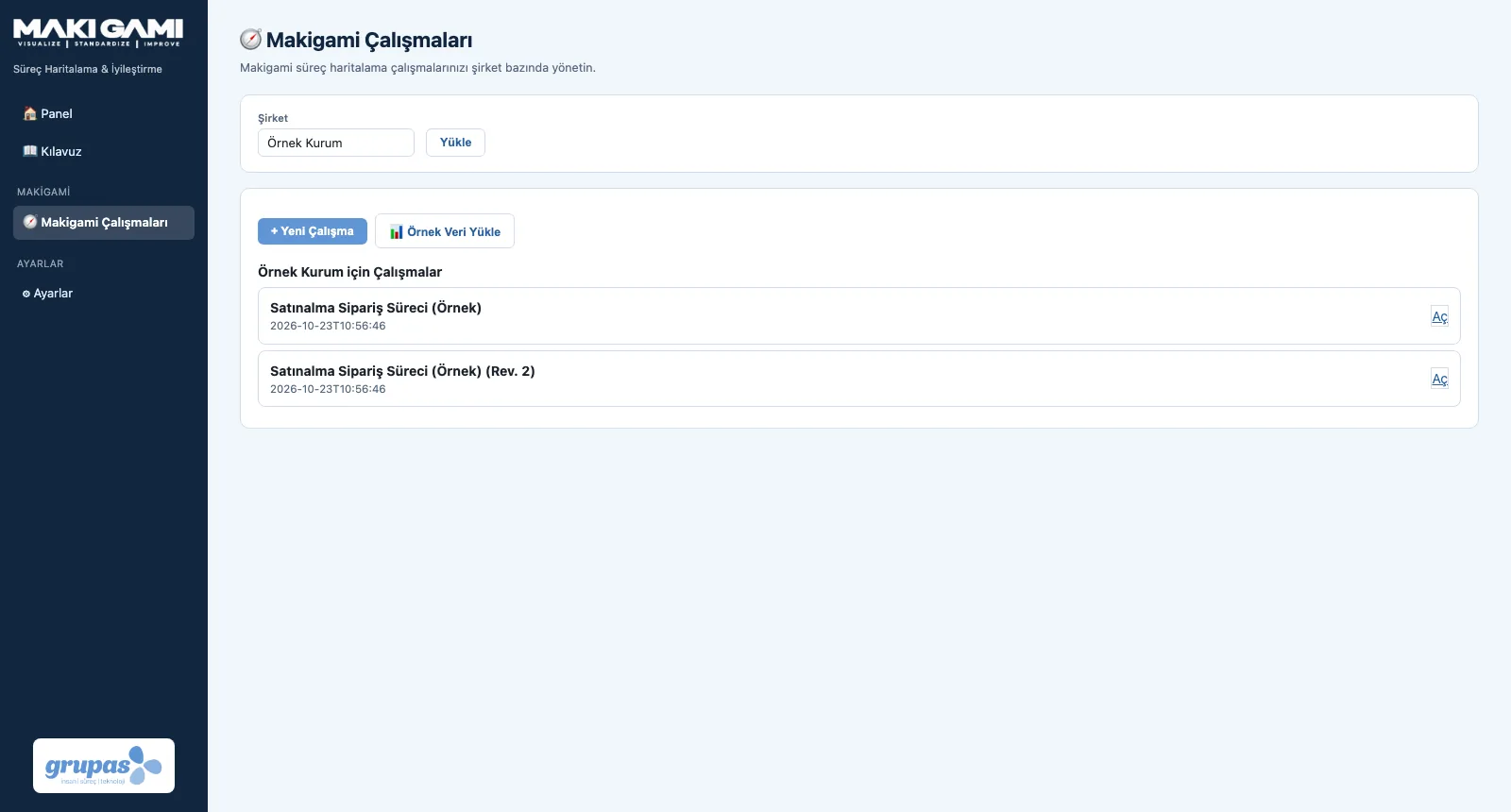
1. Open a studyOpen a new Makigami study or start from the sample process; write the scope (from where to where).
SWIM — Draw lanes and steps
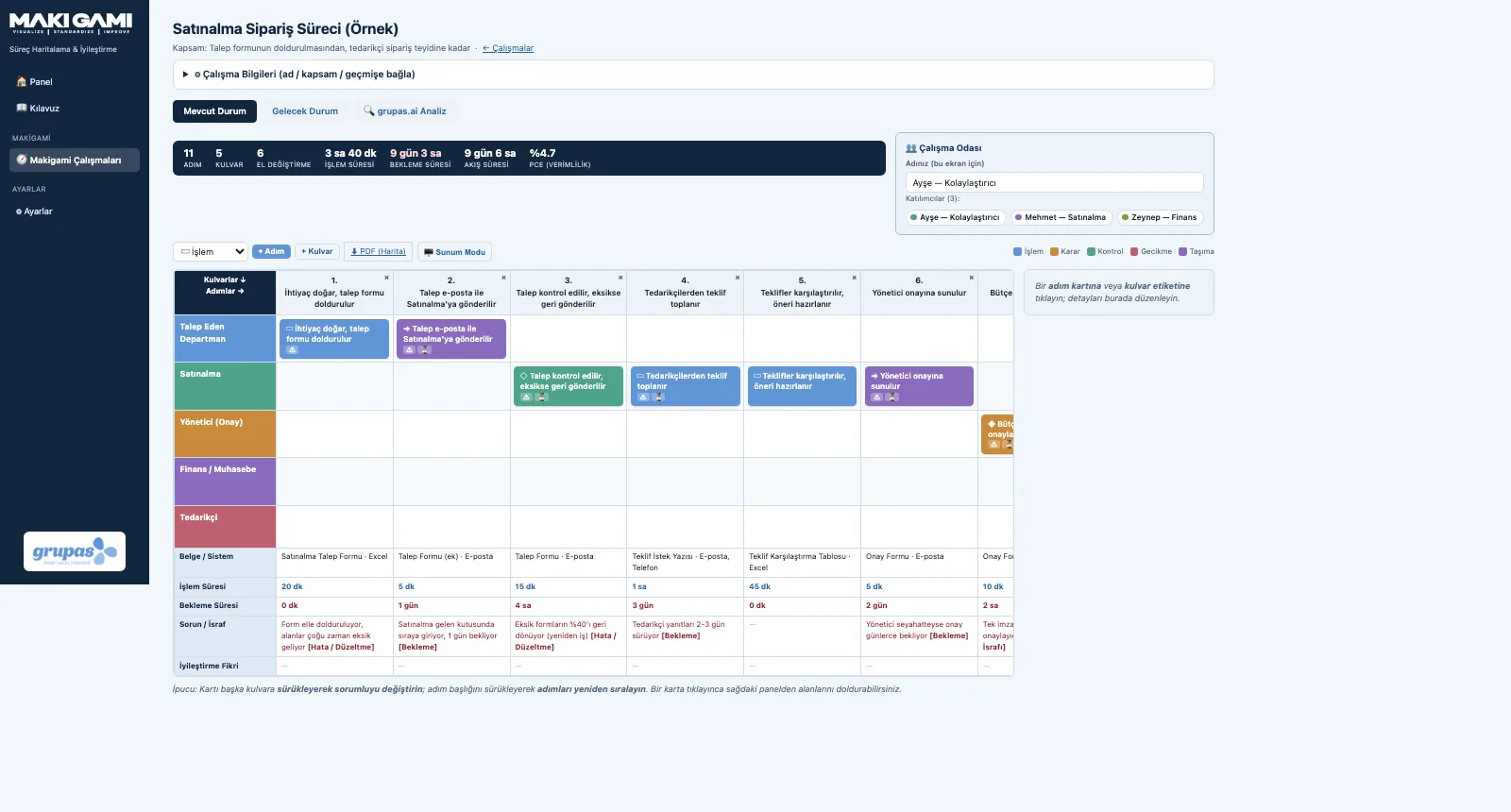
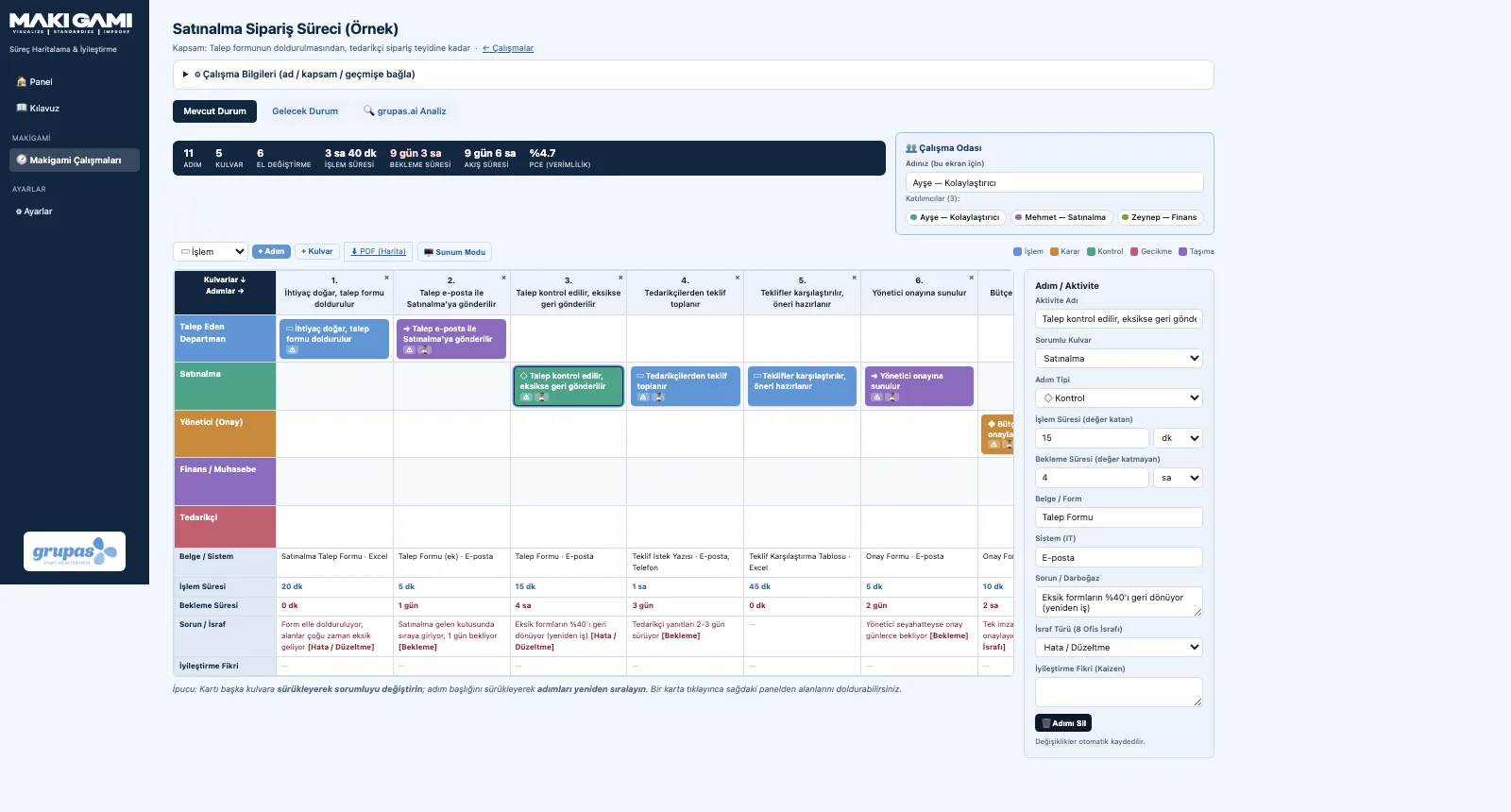
2. Draw lanes and stepsOpen a lane for each actor and add steps left to right; step cards sit in the owner's lane.
SWIM — Enter step details
3. Enter step detailsClick a card; in the panel enter its type, processing and waiting time, document / system, problem and idea.

SWIM · Explore

BAND · Record

Document, Time and Problem Bands

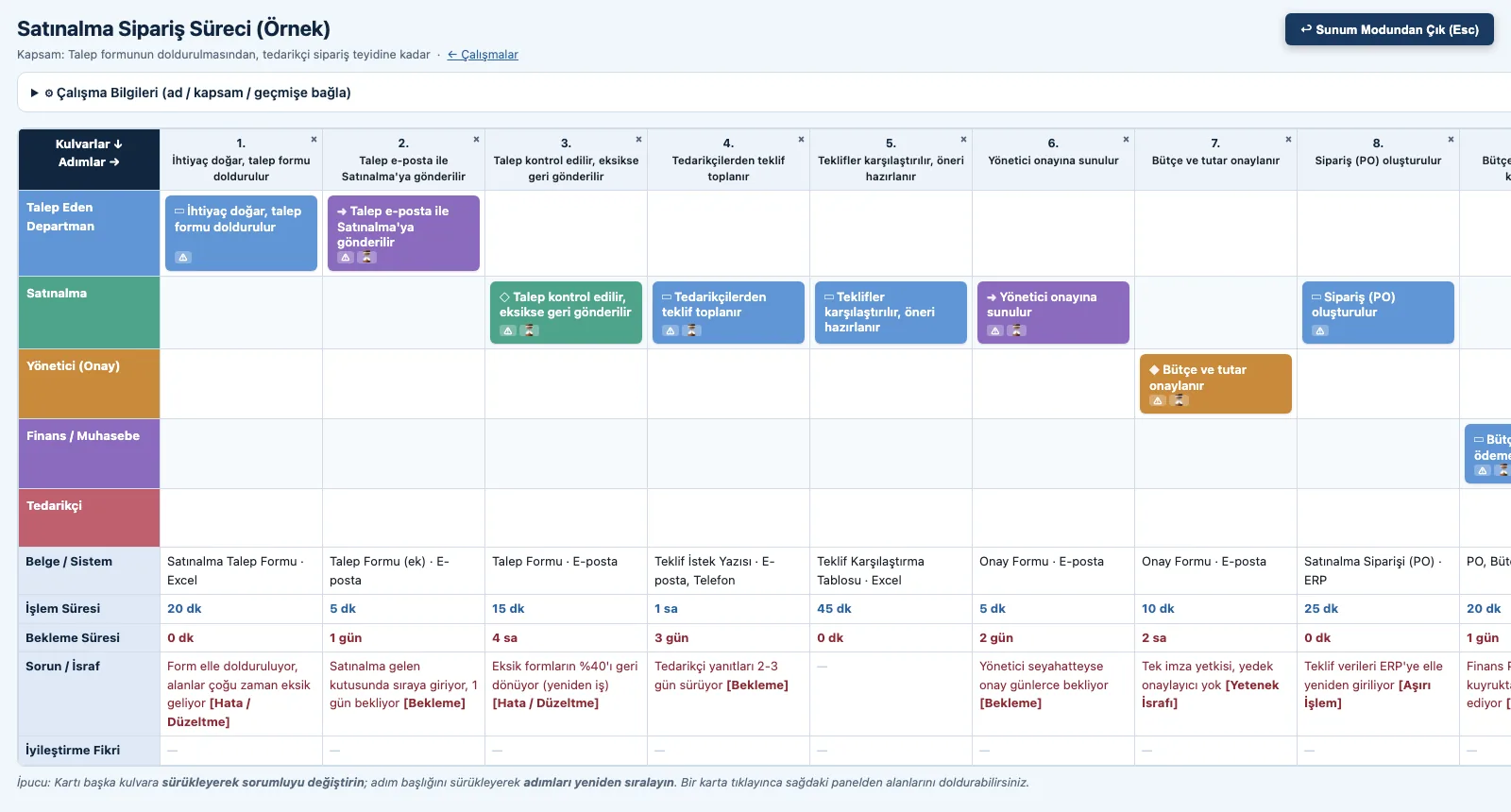
Fill in under every step: document, time, problem, idea.
BAND — Fill in the bands
1. Fill in the bandsUnder the map, document / system, processing and waiting time, problem and idea rows sit side by side for every step.
BAND — Tag the problem
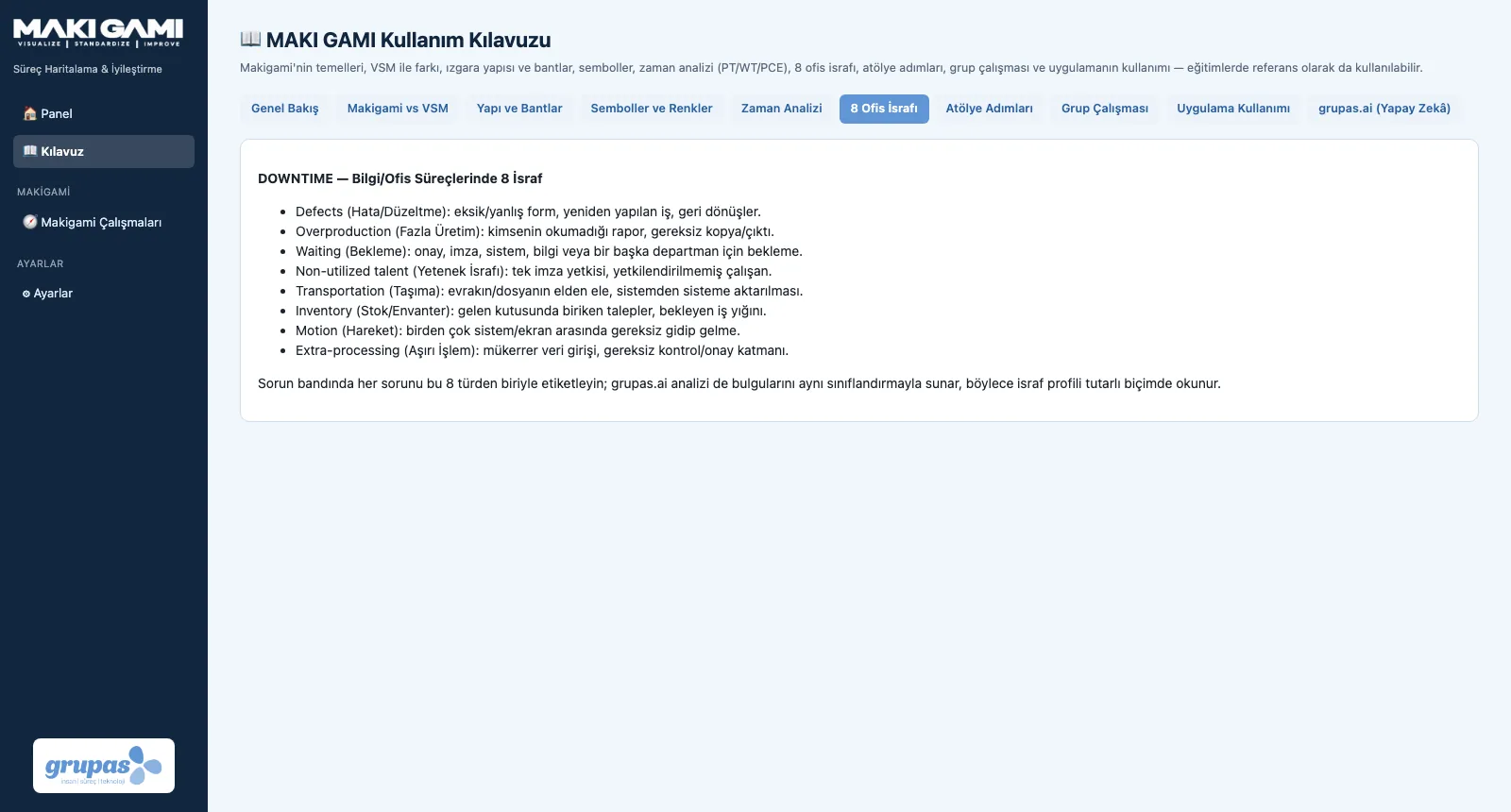
2. Tag the problemTag each problem with one of the eight office wastes: defects, overproduction, waiting, unused talent, transport, inventory, motion, extra processing.

BAND · Explore

KPI · Measure

Flow Metrics

Read the numeric picture of the process with the map.

KPI — Read the metrics bar
1. Read the metrics barSteps, lanes, handoffs, processing / waiting / lead time and PCE sit right above the map, current with every change.
KPI — Compare with the future state
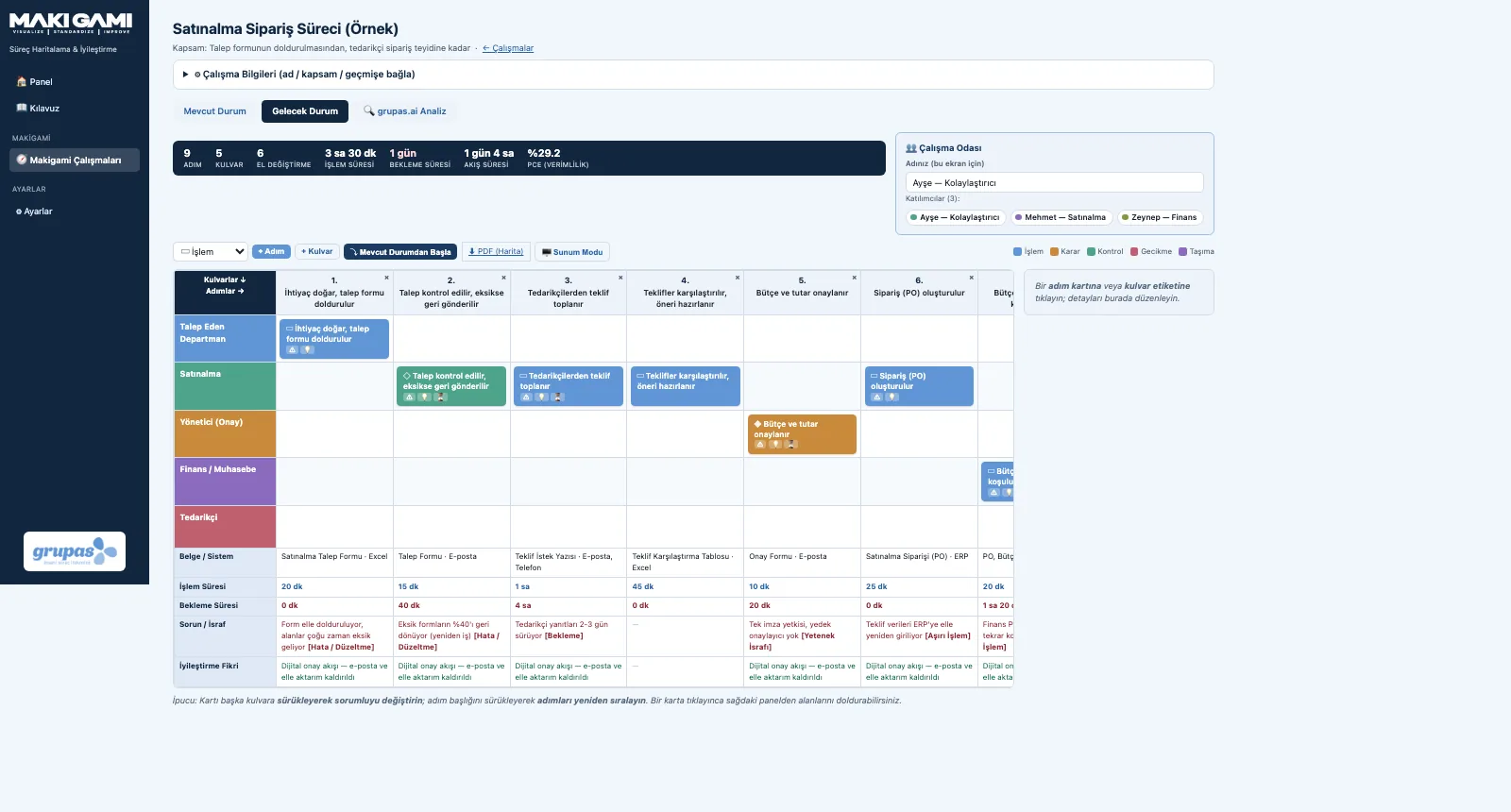
2. Compare with the future stateThe same metrics are recalculated on the future-state map; the change in waiting and PCE reads directly.

KPI · Explore

TEAM · Collaborate

Group Workshop

Set up the workshop: everyone joins, the facilitator leads.
TEAM — Join the room
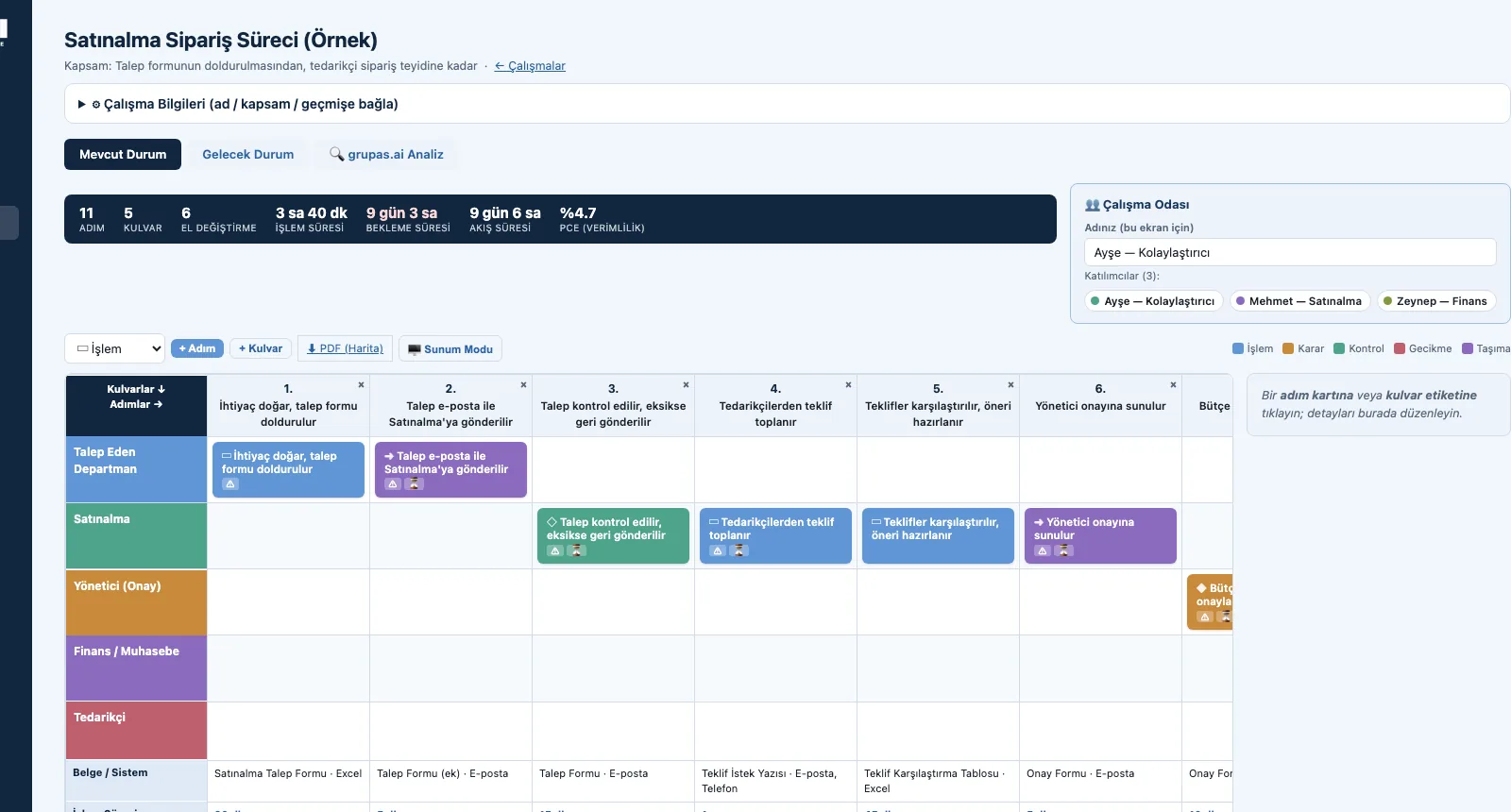
1. Join the roomParticipants open the same study and enter their names; everyone appears in the Workroom with name and colour.
TEAM — Lead on the projector
2. Lead on the projectorPresentation Mode shows the map large and clean; the facilitator leads the process in front of the team.
TEAM — Follow the workshop steps
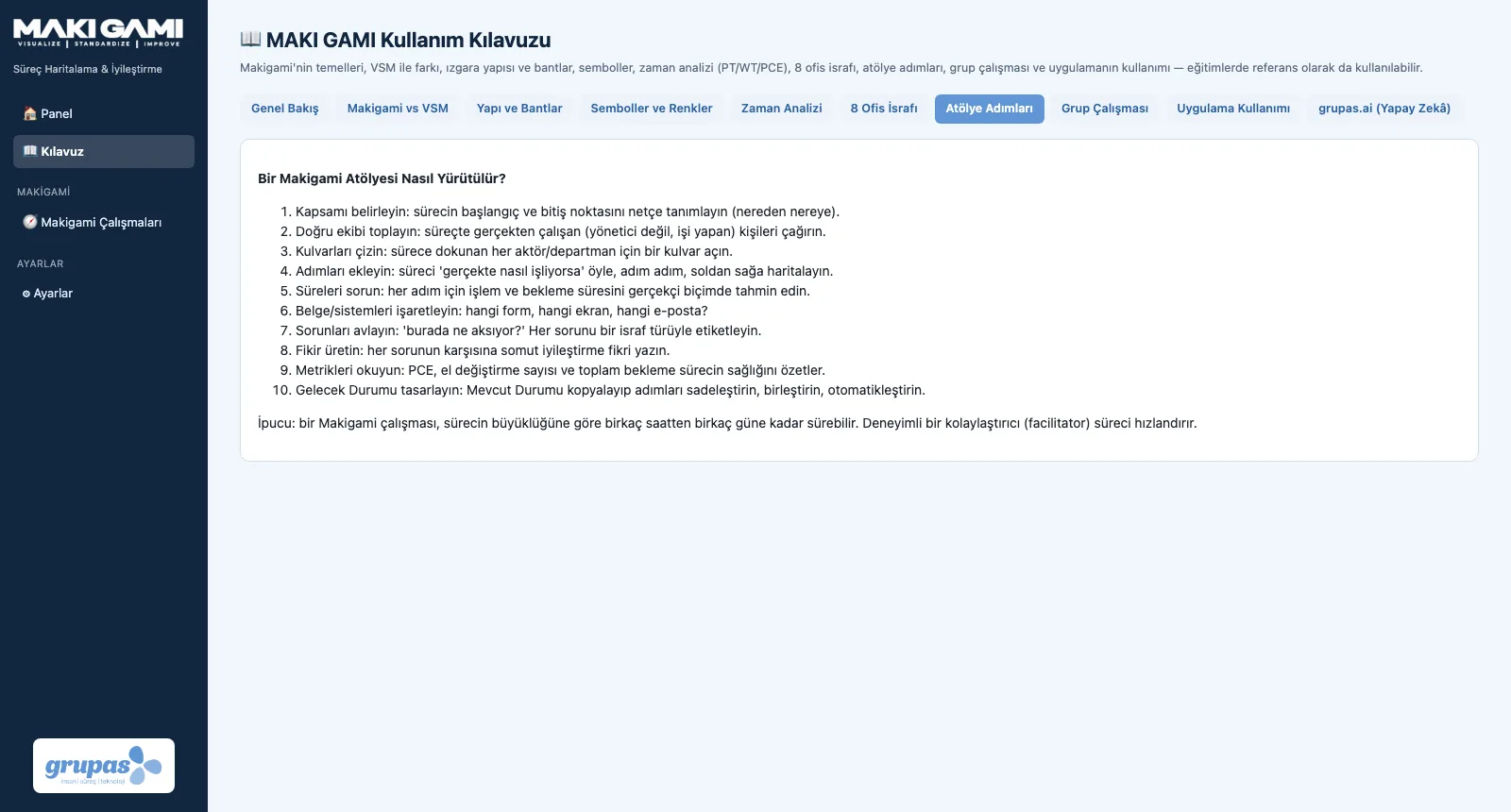
3. Follow the workshop stepsThe ten steps in the guide: scope, the right team, lanes, steps, times, documents, problems, ideas, metrics, future state.

TEAM · Explore

FSM · Design

Future State and Revisions

Copy the current state, streamline it, track it with a new revision.

FSM — Start from a copy
1. Start from a copyOn the Future State tab, copy the current state; remove needless transfers and shorten the waits.
FSM — Track revisions
2. Track revisionsOnce improvements are in place, map the process as a new revision; studies are listed per company.

FSM · Explore

AI · Analyze

AI Analysis and Reports

Start the analysis, share the report and the map.
AI — Start the analysis
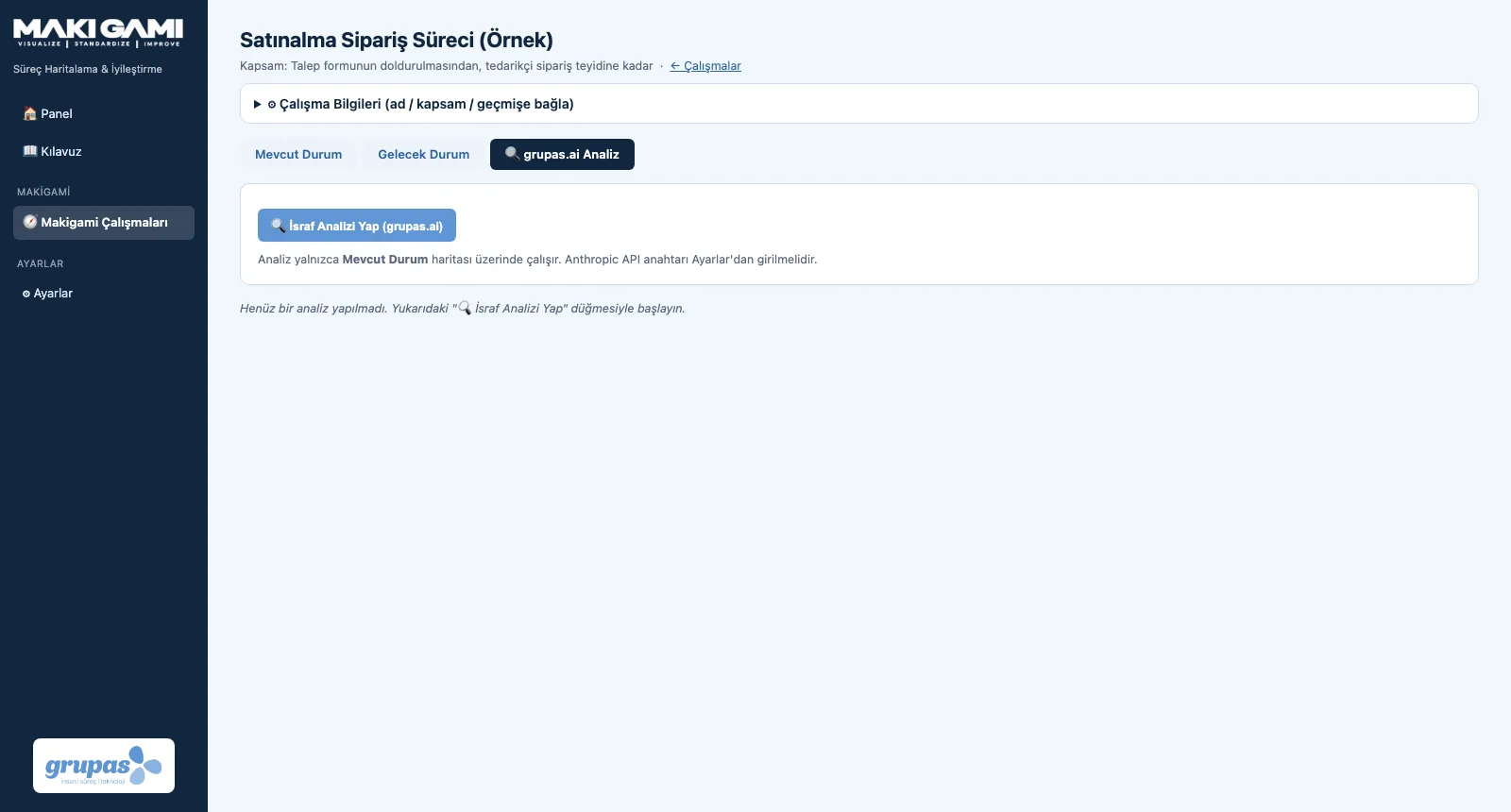
1. Start the analysisOn the grupas.ai Analysis tab, send your current-state map for assessment with one button.
AI — Get the map as PDF
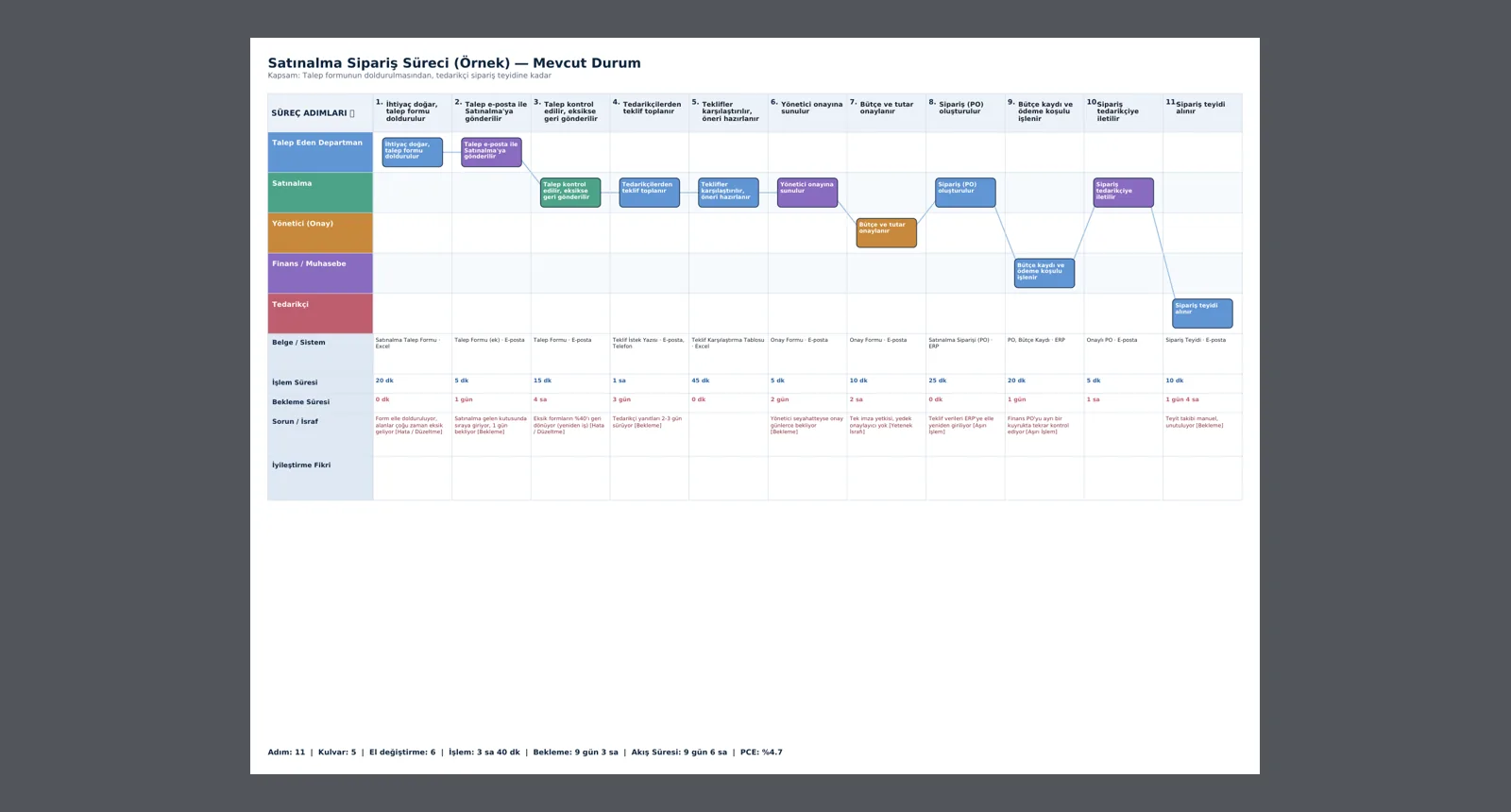
2. Get the map as PDFThe current- and future-state maps download as landscape PDFs with lanes, bands and metrics.

AI · Explore

See your office process in MAKI GAMI

Write to us for a live walkthrough on sample data.

WhatsApp
GURU

GURU · MAKI GAMI assistant

Ask about features, licenses and the Makigami method.

+90 538 390 29 78 info@grupas.com.tr
Hi, I'm GURU! I can answer your questions about MAKI GAMI and the Makigami method (swimlanes, handoffs, PCE, the 8 office wastes).